











In this short tutorial I will be showing you how to add your instagram grid to your Showit website.
STEP ONE – Use a widget generator
First of all, we will need to use either SnapWidget or LightWidget. Snapwidget is the free version but does have to be manually updated frequently, or you can use LightWidget which requires a one time payment of $10 but with little to no maintenance.
Simply sign up, link your Instagram account and create a widget. There is so much flexibility in terms of design with grids or slideshows. Just play around with it until you find something you like.
Once you are happy with it, generate a code and copy it.
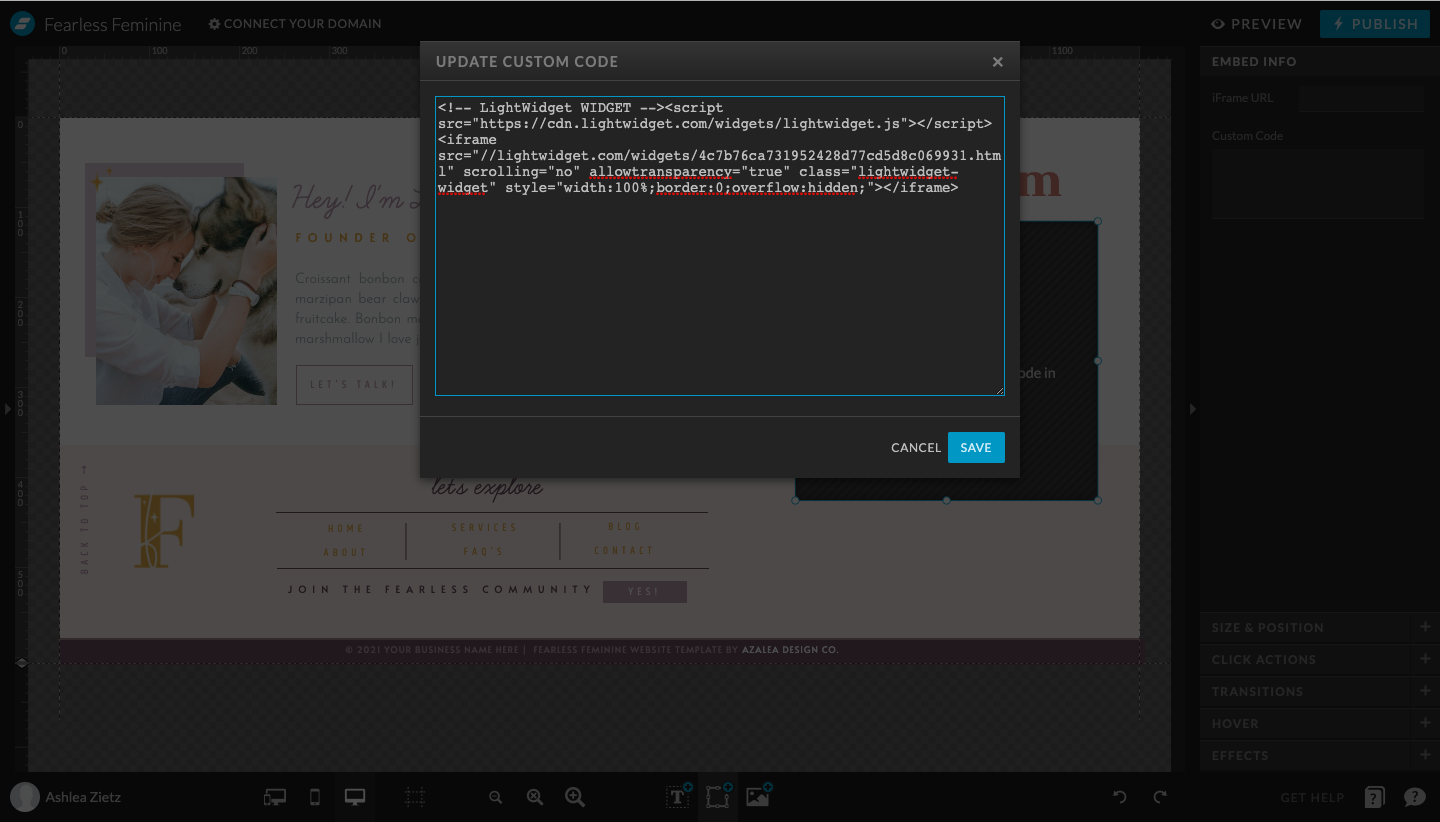
It should look something like this:

STEP TWO – Embed code into Showit
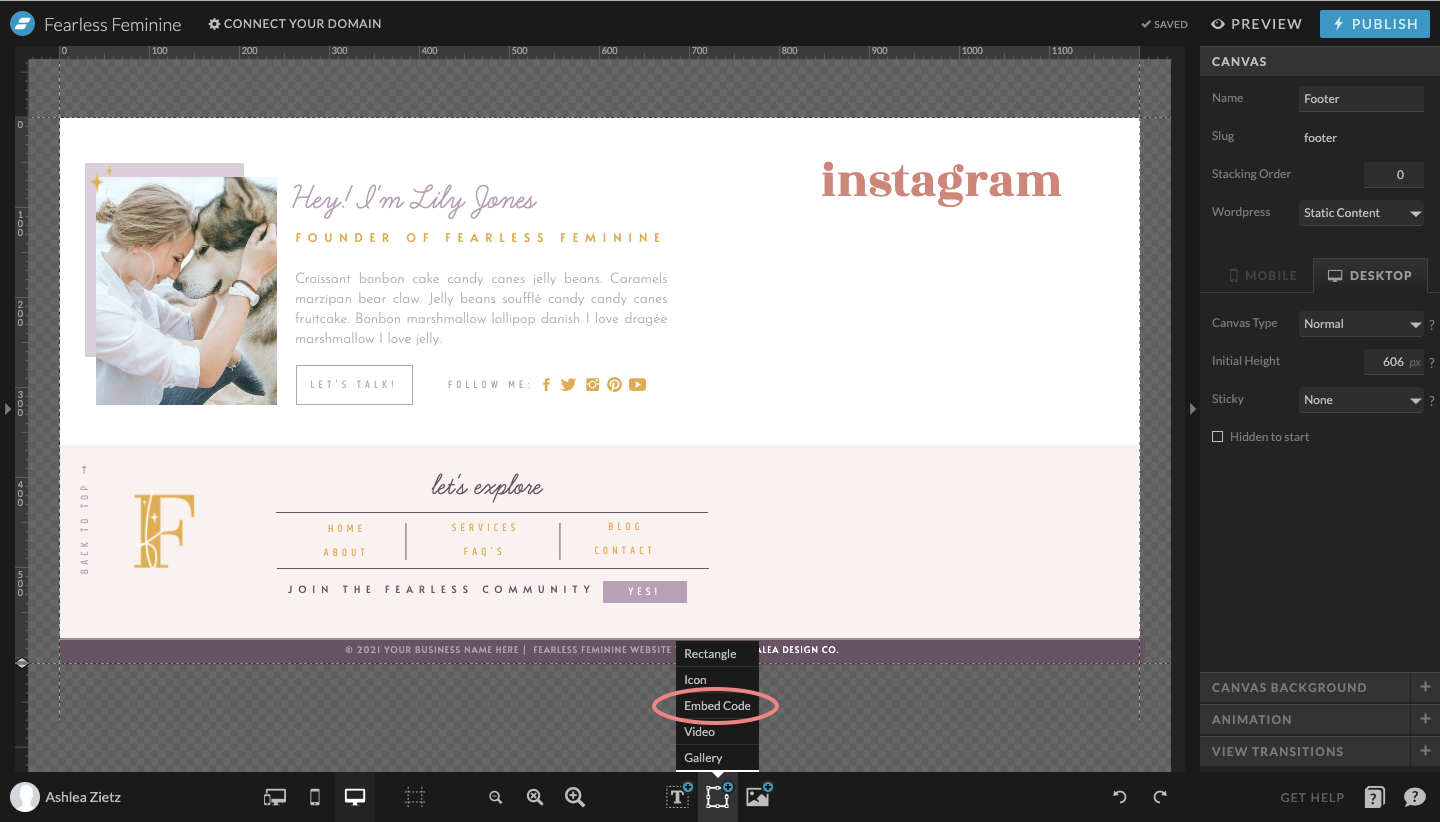
Now go to your Showit website in design mode and click on Embed Code, as shown below.
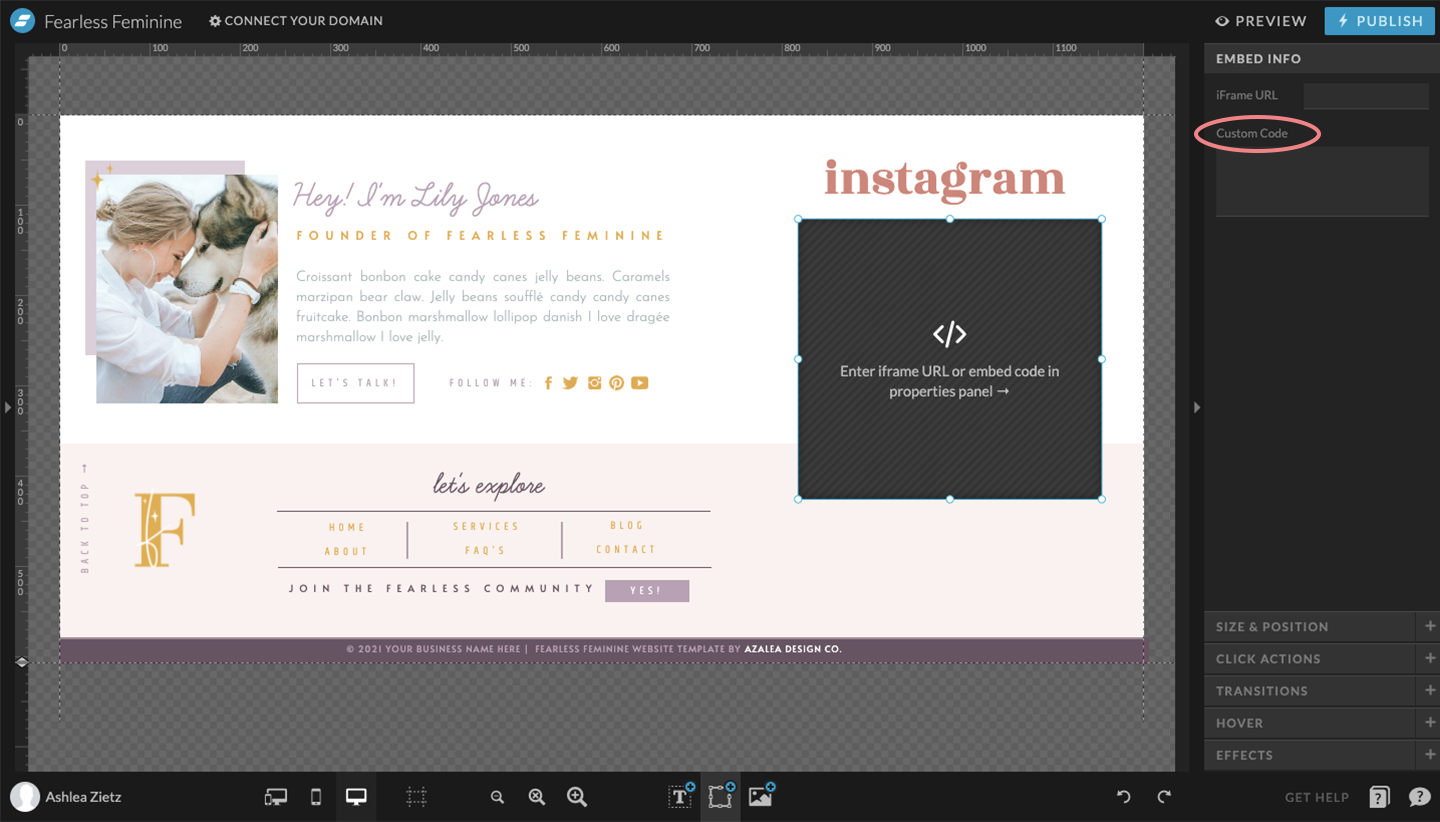
Resize the box to your liking and paste the code into the Custom Code box, like so.
STEP THREE – Preview your Showit site
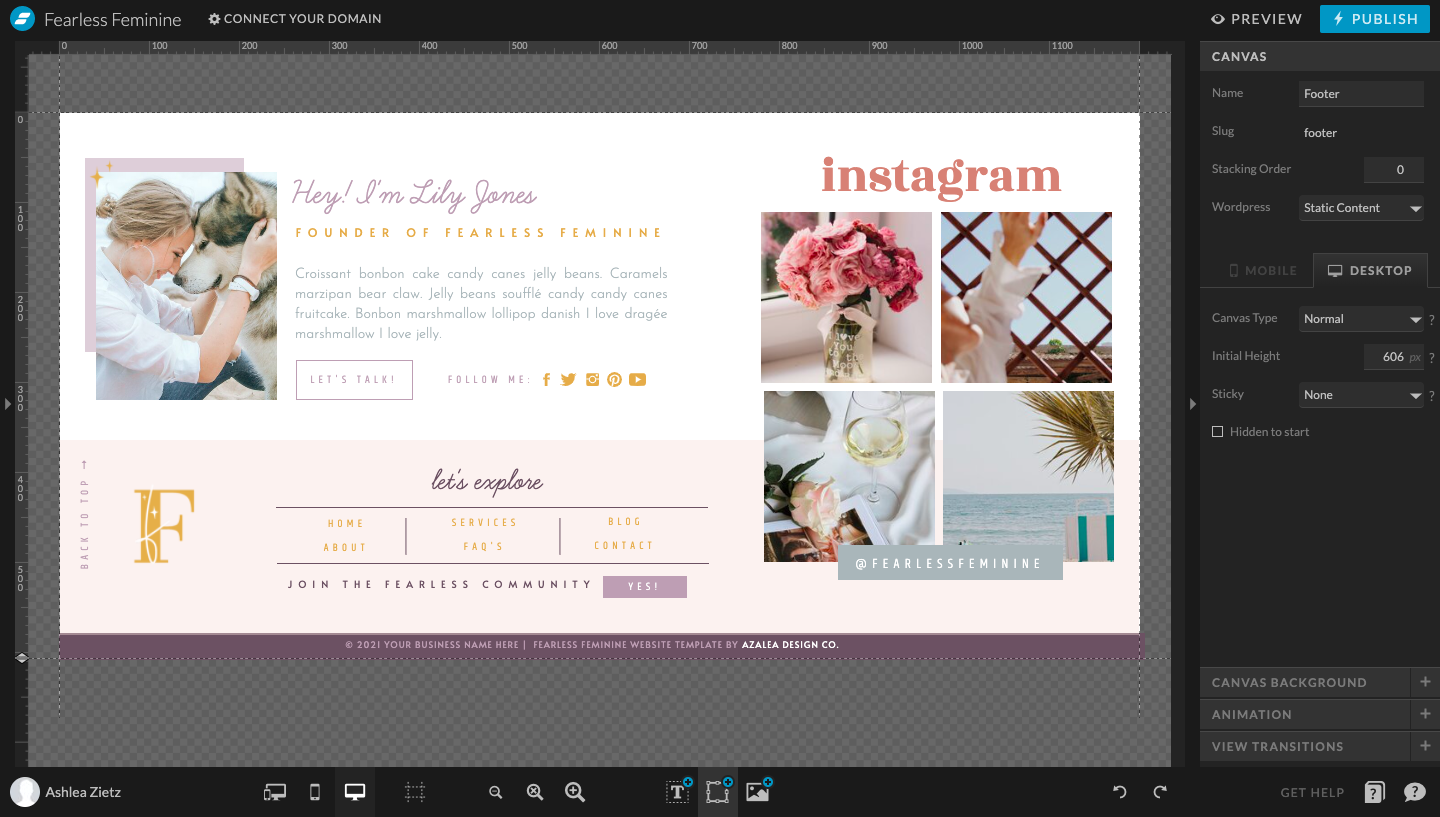
It may take a few moments to sync, but make sure it’s all working properly and then publish! ✨
I hope that helps! If you have any recommendations on the next tutorial or have any questions, do let me know!

You’ll also love…


